PDF Pro: Edit, Sign & Fill PDF
- 4.1
- Rating
- 10.00M
- Installs
- Free
- Price
 Analysis by App-foxy
I spent time with PDF Pro: Edit, Sign & Fill PDF as a practical productivity tool rather than treating it like a simple document viewer. My first impression was that it is aimed at people who regularly receive forms, agreements, invoices, study material, or work documents and want to handle them from a phone. The useful part is the combination of reading, annotation, editing, signing, and filling in one place. That saves the awkward routine of opening a PDF in one app, moving it to another for a signature, and then searching for a third tool to add a note.
That convenience is also where I think the app deserves a careful look. A PDF editor can touch highly personal material, from identity forms to employment documents, so I do not judge it only by how quickly it opens a file. I pay attention to the choices it gives me while working, how clearly I can control a document, and whether the workflow encourages me to review a file before sharing or signing it. PDF Office Lab presents this as a free productivity app, with optional in-app purchases ranging from $1.99 to $149.99 per item. That makes it easy to try, but it also means I would examine the upgrade screens before committing to regular use.
How the app feels in everyday PDF work
I judge a mobile PDF editor by more than whether it can open a file: I want to know whether ordinary tasks feel manageable without turning a quick errand into a fiddly session. In my experience, PDF Pro: Edit, Sign & Fill PDF is best approached as a handy option for focused work, with a little extra care when a document is long or important. The next section looks at what tends to make a session feel heavier.
You May Also Like

 Blood Strike: 2.5 Anniversary
Blood Strike’s Loadouts Turn Every Drop Into a Tactical Gamble
A close look at Blood Strike’s custom loadouts: how fast access to signature weapons reshapes its battle royale rhythm, rewards preparation, and narrows the gap between fights.

 Pandora - Music & Podcasts
Pandora’s Music Is Easy to Start, but Harder to Recover
Pandora’s strength is its low-effort path from a seed to a station. Its weak spot is how much confidence it asks you to place in connection, setup, and quiet recovery.

 8 Ball Pool
 Is Built on Rivalries, Rematches, and Routine
A close look at the rivalries, rematches, shared routines, and unanswered safety questions that turn a quick pool match into a persistent mobile community.

 Samsung Music
’s Quiet Strength Is Playing What You Already Own
Its reach comes less from spectacle than from dependable access to a personal library. That simplicity is both the app’s strongest retention engine and its ceiling.

 AccuWeather: Weather Radar
AccuWeather Review: A Quick, Clear Forecast for Everyday Decisions
For everyday plans, the best forecast is the one you can understand quickly. AccuWeather makes rain timing, radar, and local conditions easy to act on, with a few trade-offs.

 Hill Climb Racing
Why Hill Climb Racing Still Turns Crashes Into One More Run
A tiny car, a bumpy hill and one more upgrade: Hill Climb Racing keeps resurfacing because its simple chaos makes every near-miss feel personal.
More From Our News Desk
View All News


A sensible home for common document tasks
The strongest idea here is consolidation. When I need to make a quick change to a PDF, underline a passage, complete a form, or add a signature, I can approach the task from the same general workspace. That is more useful than it sounds. On a phone, switching between several document apps often creates small problems: a file opens in the wrong viewer, an edited copy gets saved under an unclear name, or the final version is confused with the original. Keeping the work centered in one PDF-focused app can reduce that friction.
I found the app most convincing for short, focused jobs. Signing a document before sending it back, marking a few lines in a contract, adding a comment to a class handout, or filling out a form while away from a computer are all situations where a mobile editor makes sense. It is less appealing as a full replacement for desktop publishing software. If I were rebuilding a long report, making complex layout changes, or checking every detail of a large business document, I would still prefer a larger screen and a more specialized desktop tool.
The store summary describes one solution for PDF needs, and that description matches the general direction without telling the whole story. The important distinction is that this is not merely a reader. Its value depends on the editing and markup workflow being comfortable enough that I do not feel forced back to a computer for every small correction.
What I would use it for first
My most realistic use case is a document sent by email during a busy day. Imagine receiving a permission form or service agreement while commuting. I can open the document, read it, add a note where I need clarification, complete the available fields, and apply a signature instead of waiting until I reach a laptop. Before sending it onward, I would save a separate completed copy and reopen that copy to check that the signature and filled fields are still visible. That final check is a small habit, but it matters more than speed.
Students can also get useful mileage from the annotation side. Rather than printing a reading, I can highlight a key paragraph, write a short reminder, and return to the marked document later. For office workers, the practical benefit is similar: comments and visual marks can make a long PDF easier to review before a meeting. The app is especially suitable when the job is document-centered rather than text-production-centered.
I would not choose it as my first option for writing a document from scratch, managing a team’s shared files, or performing advanced spreadsheet-like work. A PDF is usually a finished-format document, and editing it on a phone can become uncomfortable when the original layout is complicated. PDF Pro: Edit, Sign & Fill PDF is better understood as a mobile repair and completion kit than as a complete office suite.
Editing on a small screen has a real trade-off
Phone editing always involves a compromise between portability and precision. Tapping a form field or placing a mark is convenient, but selecting a tiny piece of text can require patience. I recommend zooming in before making a precise change, then zooming back out to inspect the page as a whole. This two-level check helps prevent a signature, note, or annotation from being placed slightly outside the intended area.
Another useful habit is to work from a duplicate whenever the original matters. I would keep the untouched file and create a working copy before adding annotations or signing. That is not a special feature claim; it is a safer workflow for any mobile PDF editor, and it is particularly important when the document may need to be corrected later. A single accidental edit should not become the only version available.
Signing and filling deserve extra attention
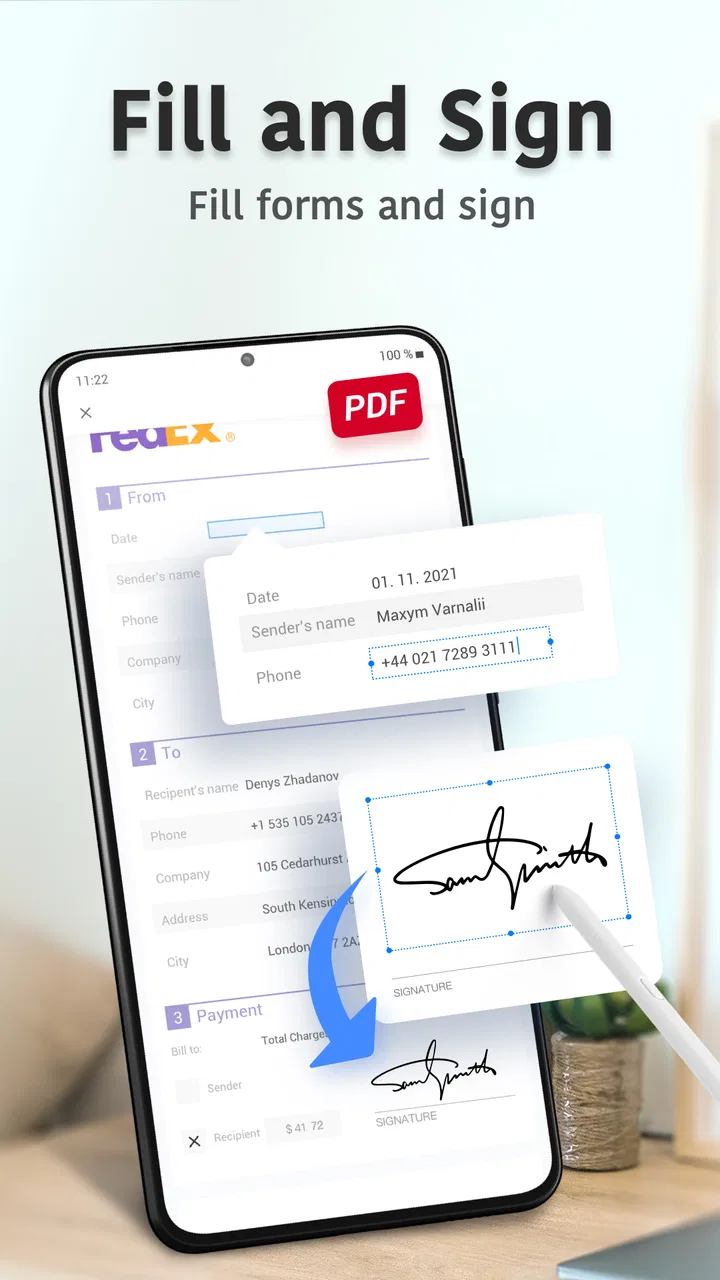
The ability to sign and fill a PDF is probably the reason many people will install this app. In practice, the quality of that experience depends on more than placing a signature. I want to know exactly which page I am signing, whether the signature sits inside the intended box, and whether other fields remain blank. I would scroll through the entire document before finalizing anything, especially when the file contains several pages.
I also avoid treating a digital signature as proof that a document is legally appropriate for every situation. The app can help me place a signature in a PDF, but the recipient’s requirements still matter. Some organizations accept a drawn or inserted signature, while others may require a particular signing process. For routine forms, this can be a convenient solution. For high-stakes agreements, I would confirm the required method before relying on a mobile editor.
Filling a form is another area where a careful review pays off. After entering information, I would check spelling, dates, numerical fields, and any boxes that may not be obvious at normal zoom. A completed PDF can look finished while still containing one missed field. The app makes the mechanical part easier, but it does not replace the user’s responsibility to verify the content.
Annotations are more useful when I keep them disciplined
Annotation tools can quickly turn a clean PDF into a confusing one. My preference is to use a small visual system: one color for important passages, another for questions, and short notes instead of long blocks of writing. That approach makes a marked document useful to someone else instead of turning it into a page covered with competing highlights.
For work reviews, I would add comments near the relevant text and then read the document once without editing. That second pass shows whether my notes are understandable outside the moment in which I wrote them. For study material, I would avoid highlighting entire paragraphs and instead mark the sentence that supports the idea I want to remember. These are simple techniques, but they reveal the app’s practical strength: it can support a repeatable review process, not just one-off scribbling.
Trust starts with visible choices
Because PDFs often contain sensitive information, I would not install any editor casually and immediately feed it personal documents. With this app, I would pay attention to the permissions Android requests, the wording shown during setup, and any prompts that appear when I open, save, export, or share a file. Those screens are where I can see the choices available to me, rather than relying on assumptions about how the app handles documents.
The developer is PDF Office Lab, and the app has reached over ten million installs with an average rating of 4.1 from around one hundred eleven thousand ratings. That level of use suggests it has broad appeal, but popularity alone is not a substitute for checking the controls on my own device. I would still review the app’s current privacy information and system prompts before using it for identity documents, financial records, or private workplace material.
I also distinguish between opening a file and sharing it. Reading a document locally feels like a different moment from exporting it to another app, attaching it to an email, or sending it through a messaging service. Before sharing, I would confirm the recipient, the selected file, and whether I am sending the original or an edited copy. The app can make document handling faster, but speed increases the importance of checking the final action.
Account and purchase decisions should remain deliberate
For a free app, I would begin with a low-risk document that contains no private information. That lets me understand the editing flow, see how files are saved, and notice which functions are available without turning a sensitive document into a test case. I would also read each upgrade screen instead of tapping through it automatically. Optional purchases can be useful for frequent users, but a person who only signs one form every few months may not need to pay for a larger package.
The app is listed as free, with in-app purchases from $1.99 to $149.99 per item. I would treat that range as a reason to check the exact offer, renewal wording, and account controls shown on my device before confirming anything. The presence of a free download does not mean every workflow is unlimited, and a large purchase can be unnecessary if my needs are occasional. My recommendation is to decide based on a repeated task that the free experience has already proved useful, not on a one-time prompt.
If the app offers account-related choices during use, I would select only what I need and keep track of where documents are stored or exported. I prefer workflows that let me understand whether a file remains on the device, moves into another service, or is passed to a separate app for sharing. The important point is not to assume that every document action is identical. Opening, editing, saving, and sending are separate decisions, and I would review each one when the file is sensitive.
Where it compares well with familiar alternatives
Compared with using a basic phone PDF viewer, this app is more capable because it is built around changing and completing documents rather than only reading them. That difference matters when I need a signature, a filled field, or a visible note immediately. Compared with a desktop PDF editor, however, the phone experience is naturally more constrained. The desktop wins for long sessions, complex layouts, detailed text selection, and side-by-side comparison.
There is also a trade-off against using separate specialist apps. Individual tools can sometimes feel more focused: a dedicated scanner may be better for capturing paper, a note-taking app may be better for freeform study, and a formal signing service may be more appropriate for business processes with strict requirements. PDF Pro: Edit, Sign & Fill PDF becomes the better choice when I value having several ordinary PDF tasks close together and do not want to maintain a collection of narrowly focused apps.
That comparison gives me a clear way to decide. If my priority is quick mobile completion and markup, this app is a sensible candidate. If my priority is formal document governance, advanced collaboration, or pixel-level layout control, I would look elsewhere. It is not a weakness that the app does not replace every category at once; the key is choosing it for the work it handles comfortably.
Compatibility and practical setup
The app supports Android devices running version 5.0 or later, which covers a wide range of phones. I would still keep the operating system and the app itself current where possible, particularly when working with documents that must display consistently. The current version is 7.4.3, so I would check the installed version before troubleshooting an unexpected behavior or comparing instructions found elsewhere.
Before using it for an important file, I would test three things: whether the document opens with its layout intact, whether my edits remain after saving, and whether the exported result can be opened in the app or viewer the recipient uses. This is especially important for forms with unusual fonts, multiple pages, or fields that are not obvious. A short test with a harmless document can reveal more than assuming every PDF will behave identically.
The Everyone age rating makes the app broadly accessible, but that does not change the need for adult judgment around private paperwork. A younger user may be able to operate the tools, while an adult should still decide which documents are appropriate to open, sign, or share. The rating describes general content suitability, not the sensitivity of the files a person may handle inside the app.
Who should install it, and who should skip it
I would recommend trying it to anyone who frequently receives PDFs on a phone and needs to complete small tasks away from a computer. It is a good fit for signing routine forms, marking reading material, adding review notes, and making modest corrections without opening a full desktop suite. It also suits people who prefer learning one general PDF workflow instead of switching between several tools.
I would be more cautious if I rarely handle PDFs, dislike checking purchase prompts, or need a strictly controlled signing process. Someone managing confidential business records should first inspect the visible permission, storage, sharing, and account choices on their own device and compare them with workplace requirements. A person doing heavy document production should probably use a desktop editor, where selecting text and checking layout are easier.
I would also skip it for a task that depends on a particular professional standard unless the recipient has confirmed that an edited or signed PDF produced through a mobile app is acceptable. Convenience is valuable, but it should not override the rules attached to the document. In those cases, a specialized service or the organization’s own approved software may be the safer option.
My cautious recommendation
After using PDF Pro: Edit, Sign & Fill PDF as a mobile productivity tool, I see its main strength clearly: it brings several everyday PDF jobs into one approachable workflow. The combination of editing, annotation, signing, and form completion is genuinely useful when a laptop is unavailable. It is also free to try, supports older Android versions, and has attracted a large user base.
My recommendation comes with a deliberate boundary. I would use it for routine documents after testing the workflow, duplicate originals before editing, inspect every signed or completed page, and review the visible permissions and sharing choices before opening sensitive files. I would also examine the exact in-app purchase terms rather than assuming the free installation covers every feature.
For quick, ordinary PDF work on Android, this is a practical app worth testing; for high-stakes signing, complex editing, or tightly governed documents, I would choose a tool specifically approved for that situation. That balance is why I would keep it available for everyday forms and annotations, while resisting the temptation to treat it as the automatic answer for every PDF I receive.
FAQs for PDF Pro: Edit, Sign & Fill PDF
01What is PDF Pro: Edit, Sign & Fill PDF used for?
PDF Pro: Edit, Sign & Fill PDF is designed for managing PDF documents on a mobile device. It typically lets you open, read, organize, annotate, fill out forms, add signatures, and make basic edits without needing a desktop computer. It can be useful for students, professionals, and anyone who regularly handles contracts, applications, invoices, or other digital paperwork while traveling or working remotely.
02Can I edit text and images in an existing PDF with PDF Pro?
The app focuses on common PDF editing tasks, but the exact editing tools may depend on the document and the version of the application you install. Users can generally expect features such as adding text, highlighting content, drawing, inserting notes, and working with images or pages. More advanced edits, including changing the original text structure or rearranging complex layouts, may require a premium plan or have certain limitations.
03Does PDF Pro allow users to sign and fill out PDF forms?
Yes, signing and completing documents are among the app’s main purposes. You can usually type information into form fields, add checkmarks, draw or create a saved signature, and place it in the appropriate area of a document. Before relying on it for an important legal or business form, review the final PDF carefully to make sure every field, date, signature, and attachment appears correctly.
04Is PDF Pro: Edit, Sign & Fill PDF free to download and use?
The application may be available as a free download, but some tools can be restricted by subscriptions, in-app purchases, or usage limits. Basic viewing or annotation may be accessible without payment, while advanced editing, exporting, cloud features, or removing limitations may require a premium upgrade. Check the current store listing for pricing, trial terms, renewal conditions, and whether a subscription is automatically renewed.
05Is PDF Pro safe for private or confidential documents?
PDF Pro can be convenient for handling personal documents, but users should still consider privacy before importing sensitive files such as identity records, medical information, or financial contracts. Review the app’s privacy policy, permissions, cloud-storage behavior, and sharing options. Use a secure device, avoid public Wi-Fi when transferring confidential files, and delete temporary copies or shared links when they are no longer needed.
Pros
- Quickly edits text
- images
- and pages directly in PDF files.
- Supports electronic signatures and reusable signature creation.
- Form-filling tools make completing digital documents convenient.
- Scans paper documents into PDFs using the device camera.
- Cloud storage integration simplifies access across multiple devices.
Cons
- Many advanced editing features require a paid subscription.
- Large or image-heavy PDFs may take longer to load and process.
- OCR accuracy can vary with blurry scans or unusual fonts.
- Some cloud features depend on a stable internet connection.
- Frequent document work can use considerable device storage.

PDF Pro: Edit, Sign & Fill PDF
Gallery